
Sitemap couldn't fetch in Search Console: what it means and how to fix it

Sitemap couldn't fetch, in the Sitemaps report of Search Console, means that Google did not download the file the last time it tried. Sometimes nothing is broken and Google simply has not read it yet; sometimes the server answers with an error, a redirect or an HTML page. A live test tells you which case you are in, in two minutes.
What does “Couldn’t fetch” mean in the Sitemaps report?
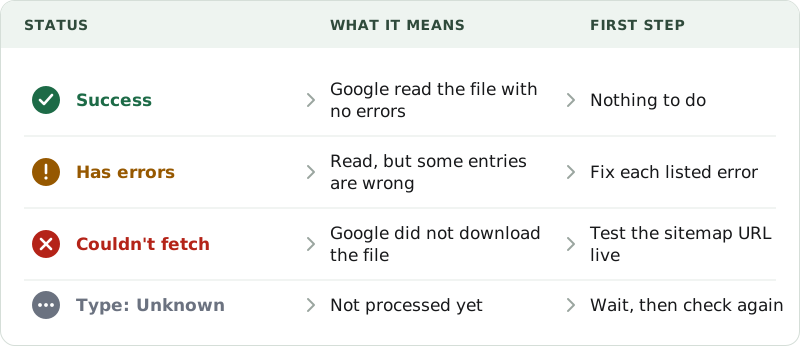
Google’s help page for the Sitemaps report defines three statuses. “Success” means the file was loaded and processed with no errors. “Has errors” means Google read it but found one or more problems; the URLs it could parse still go to the crawl queue. “Couldn’t fetch” means Google could not retrieve the file at all. Click the row and the details page says “Sitemap could not be read”, sometimes with a more precise error such as “General HTTP error”.
That status does not always point to a fault in your file. In episode 114 of Google’s Search Off the Record podcast, John Mueller gave two common reasons for it when the XML is valid and public. The first is host load: Google had no time to fetch the file. The second is crawl demand: Google decided it did not need much more from the site, a decision he said is “very often based on the perceived quality of a website”.
Google’s help defines no “Pending” status. It does describe the “Unknown” type, shown for a file that Google has not processed yet. If you submitted the sitemap today, run the live test below, and if it passes, wait a few days before you change anything. After a failed fetch, Google keeps trying for a few days, then stops until you resubmit.
Why can’t Google fetch my sitemap?
When the live test fails, the cause is almost always on the way between Google and the file.
- The address is wrong. A 404 means there is no sitemap at the URL you submitted. Compare it with the address your site really uses:
httpsorhttp, with or withoutwww, with or without a trailing slash. In WordPress, Settings > General shows the site address. Our guide lists where WordPress plugins publish sitemaps. - The URL redirects. The help page says that for the submitted sitemap URL, redirects are not followed. Submit the final address, the one that answers directly with a 200 status.
- robots.txt blocks it. Google respects robots.txt when it fetches a sitemap. A rule like
Disallow: /*.xml$blocks every XML file on the site, sitemaps included. - The server fails. A 5xx error or a timeout shows as a fetch error. “General HTTP error” covers any other HTTP problem; expand the details in the report to see which one.
- A manual action is open. Google does not read sitemaps while a site has an unresolved manual action. Check the Manual actions report.
- WordPress hides the sitemap. The WordPress 5.5 announcement says core sitemaps are turned off when Settings > Reading asks search engines not to index the site. The address then returns a 404.
When the server sends HTML instead of XML
Open the sitemap in a private window and view the source. The first line should be <?xml or the <urlset> or <sitemapindex> tag. If it starts with <!DOCTYPE html>, Google received a web page: a login form, a maintenance page, your theme’s 404 page, or a security check.
Security layers are a common source. Cloudflare’s “I’m Under Attack” mode shows visitors an interstitial page, and its documentation says that Bot Fight Mode cannot be skipped with WAF custom rules. Security plugins, firewalls and hosting bot filters can do the same. A cache can also serve an old copy: Rank Math advises excluding sitemaps from caching plugins.
Look at the Content-Type response header in the Network panel of Chrome DevTools. An XML sitemap is normally sent as application/xml or text/xml. If you see text/html, something other than your sitemap generator answered. Forum threads call this case “Sitemap is HTML”; today’s help page has no error with that name, and the closest entry is “Unsupported format”.
Size and compression problems have their own errors in the report. A sitemap may list 50,000 URLs and weigh 50MB uncompressed; beyond that, split it and submit a sitemap index, which can list up to 50,000 sitemaps on the same site but no other index. A .xml.gz file must be valid gzip, or the report shows “Compression error”.
WordPress: wp-sitemap.xml or sitemap_index.xml?
WordPress has published /wp-sitemap.xml since version 5.5 and lists it in the robots.txt file it generates. Yoast SEO and Rank Math replace it: their source code shows that, when their sitemap is on, they turn off the core sitemap and send /wp-sitemap.xml to their own index with a 301 redirect. If you submitted the core address before installing one of them, submit /sitemap_index.xml and remove the old entry from the report.
Run only one sitemap generator. Two plugins that both publish sitemaps make it hard to know which file Google reads.
If the plugin’s sitemap itself returns a 404, go to Settings > Permalinks and click “Save Changes” without changing anything. Yoast and Rank Math both give this fix, which rebuilds the rewrite rules that serve the file. If the 404 remains, Yoast points to the server’s rewrite rules, often on Nginx, which your host can check.
From 17 November 2026, Chrome 158 stops applying XSL stylesheets, so the styled table of a WordPress sitemap disappears in the browser. Google keeps reading the same XML. Our article on the XSL layout and SEO explains why the layout does not matter to Google.
How do I test the sitemap URL and resubmit it?
- In Search Console, paste the sitemap URL into URL Inspection and click “Test live URL”. The URL must belong to the property.
- Open “Page availability”. “Page fetch” should say “Successful”. “View tested page” shows the HTTP response headers, so you can see the status code and the content type that Google received.
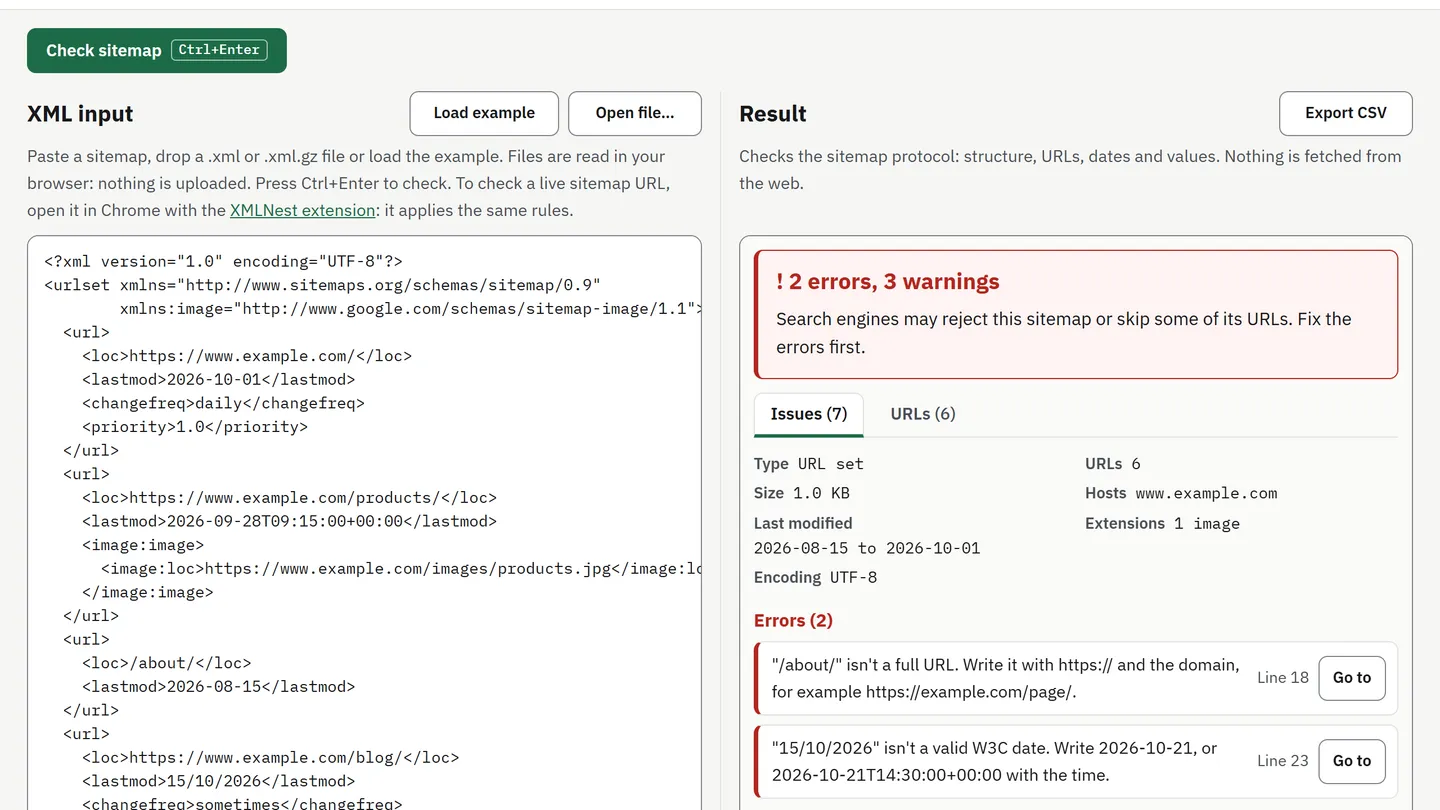
- Check what the file contains. Paste it into the free XML Sitemap Checker, which reads
.xmland.xml.gzfiles in your browser and lists each problem with its line.
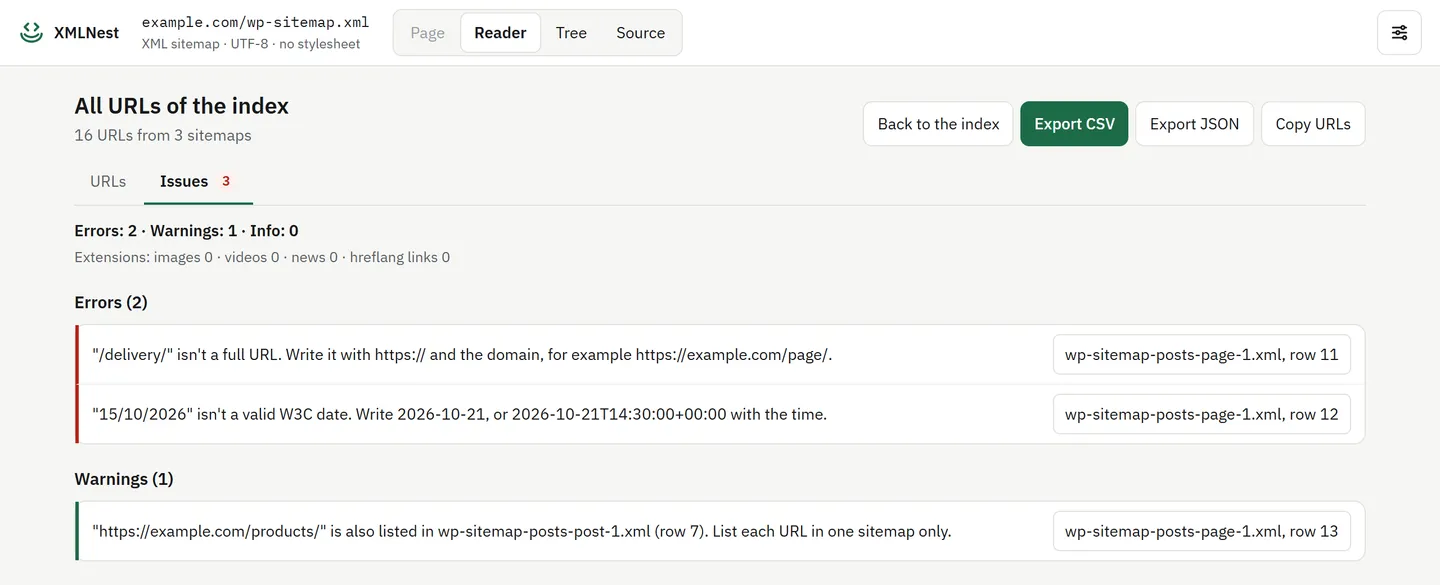
On a live site, the XMLNest extension for Chrome opens the sitemap URL itself and runs the same checks in its Issues tab. On a sitemap index, “Load all child sitemaps” reads every child sitemap from the same site, so one view covers the whole WordPress sitemap.
- Fix the cause, then submit the same URL again in the Sitemaps report. Google’s help asks for a new submission after a fix. “Temporary error” is the exception: Google retries by itself, and you resubmit only if it lasts several hours.
- If everything passes and the status stays the same, the file is not the problem. Keep the
Sitemap:line in robots.txt and work on the site itself; Google still finds pages through links.
Sitemap fetch checklist
- The live test says “Successful” and the response is XML, not HTML.
- The submitted URL is the final https address, with no redirect.
- robots.txt does not block the sitemap, and no security rule challenges Googlebot.
- WordPress: one sitemap generator; submit
sitemap_index.xmlwith Yoast or Rank Math,wp-sitemap.xmlwithout them. - Under 50,000 URLs and 50MB per file; valid gzip for
.xml.gz. - After a fix, resubmit once, then wait a few days.
Questions
How long can a new sitemap stay on Couldn't fetch?
Google gives no delay. Its help page defines no Pending status, and it lists the Unknown type for a sitemap that has not been processed yet. If the live test of the sitemap URL says Successful, leave it alone for a few days before you change anything.
Does Couldn't fetch stop my pages from being indexed?
No. Google calls a sitemap a hint: it still finds pages through links. A sitemap that is never read only removes one way for Google to discover new or updated URLs, which matters most on large or new sites.
Should I submit wp-sitemap.xml or sitemap_index.xml?
Submit the index that your site really serves. With Yoast SEO or Rank Math, that is sitemap_index.xml: both plugins turn off the WordPress sitemap and redirect wp-sitemap.xml to their own index. Without an SEO plugin, it is wp-sitemap.xml.
Do I need to resubmit the sitemap after a fix?
Yes. Google's help says to fix the problem and resubmit the sitemap, because Google stops trying after a few days of failures. The only exception is Temporary error, which usually clears without a new submission.
Can Cloudflare or a security plugin block Googlebot from my sitemap?
It can if a rule answers automated requests with a challenge or a block page instead of the XML. The live test in URL Inspection shows the HTTP response and the page Google received, so you can see whether that happens.
Sources
- Manage your sitemaps using the Sitemaps report - Search Console Help (checked on 23 October 2026)
- URL Inspection tool - Search Console Help (checked on 23 October 2026)
- Google Search Central: Build and submit a sitemap (checked on 23 October 2026)
- Google Search Central: Manage your sitemaps with sitemap index files (checked on 23 October 2026)
- Search Off the Record, episode 114: Do sitemaps still matter? (1 October 2026) (checked on 23 October 2026)
- sitemaps.org: Protocol (checked on 23 October 2026)
- Make WordPress Core: New XML Sitemaps Functionality in WordPress 5.5 (checked on 23 October 2026)
- Yoast SEO source code: Disable_Core_Sitemaps (checked on 23 October 2026)
- Rank Math source code: Redirect_Core_Sitemaps (checked on 23 October 2026)
- Yoast: My sitemap is giving a 404 error, what should I do? (checked on 23 October 2026)
- Rank Math: Troubleshooting the Couldn't Fetch Error in Google Search Console (checked on 23 October 2026)
- Cloudflare docs: I'm Under Attack mode (checked on 23 October 2026)
- Cloudflare docs: Bot Fight Mode (checked on 23 October 2026)