
“This document cannot be formatted as intended”: XSLT removed from Chrome
“This document cannot be formatted as intended. It uses XSLT, which the browser does not support.” Since Chrome 158, released on 17 November 2026, Chrome shows this message above the raw XML of pages that use an XSL stylesheet. Here is what it means, who is affected, and what visitors and site owners can do.
Since Chrome 158, Chrome shows this message at the top of XML pages that use an XSL stylesheet. It is in English, whatever the language of your browser:
This document cannot be formatted as intended. It uses XSLT, which the browser does not support. You might be able to install a browser extension that allows you to view it.
It means the page is built with XSLT, which Chrome 158 removed on 17 November 2026. The file still loads, but Chrome shows its raw XML tags instead of the styled layout. What to do depends on who you are:
- Visitor: install an extension that applies the stylesheet again, XMLNest or the official XSLT Polyfill extension.
- Site owner: run the XSLT transformation on your server, or add the xslt-polyfill script to the page.
- IT team: the XSLTEnabled enterprise policy keeps XSLT in managed browsers until 17 August 2027.
- Developer: JavaScript that calls XSLTProcessor no longer works either. Both extensions can restore it; XMLNest does so only on the sites you turn on.
Why is XSLT not working in Chrome?
XSLT is the language that turns an XML document into a readable page, using an XSL stylesheet that the XML file points to. Chrome removed it in version 158. Chrome’s announcement gives this timeline:
| Chrome version | Date | What happens |
|---|---|---|
| Chrome 143 | 2 December 2025 | XSLT is officially deprecated. Warnings appear in the developer console and in Lighthouse. |
| Chrome 158 | 17 November 2026 | XSLT stops working on Stable releases, for all users other than origin trial and enterprise policy participants. |
| Chrome 176 | 17 August 2027 | The origin trial and the enterprise policy stop working. XSLT is disabled for all users. |
The reason is security: Chrome explains that libraries such as libxslt are complex C and C++ code, prone to memory safety vulnerabilities such as buffer overflows.
Pages you may notice
Chrome says that only about 0.02% of web page loads use XSLT. Rare, then, but concentrated on a few kinds of pages:
- WordPress sitemaps. Since WordPress 5.5, WordPress exposes a sitemap index at
/wp-sitemap.xmland provides XSL stylesheets to style all its sitemaps. See how to view a WordPress sitemap. - Styled RSS and Atom feeds. Chrome notes that in many existing feeds, XSLT is used to make the raw XML human-readable when you open the feed directly in the browser. See what to do when an RSS feed shows as plain text.
- Embedded devices. Chrome mentions commercial devices that generate XML data for users on the local network, and adds that many such devices are difficult or impossible to update. For those, Chrome points to the browser extension.
What you see instead
When XSLT is off, the stylesheet is no longer applied, so the layout it built disappears: no table, no headings, no clickable links.
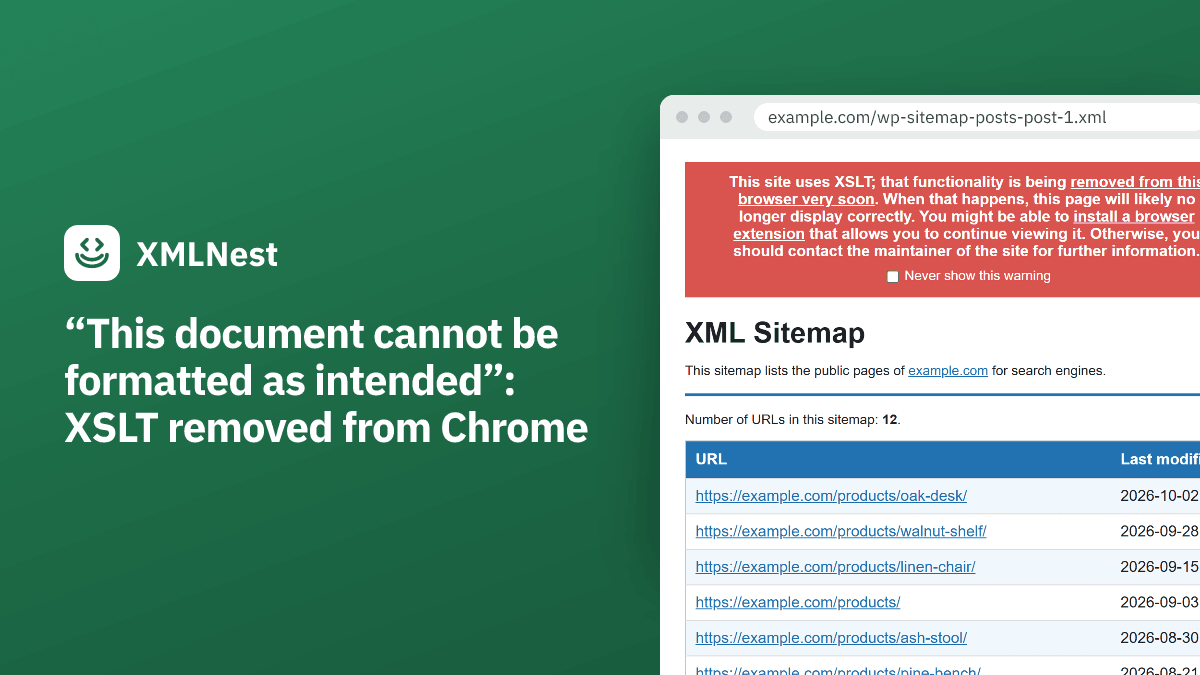
Before Chrome 158, the styled page still worked, with this banner at the top, in the language of your browser:
This site uses XSLT; that functionality is being removed from this browser very soon. When that happens, this page will likely no longer display correctly. You might be able to install a browser extension that allows you to continue viewing it. Otherwise, you should contact the maintainer of the site for further information.
You may still see it in an older version of Chrome or of another Chromium-based browser. Chrome does not show the banner when the page already loads the polyfill script, or when the enterprise policy or the origin trial keeps XSLT on.
XMLNest or the official XSLT Polyfill extension?
Chrome’s announcement links to one extension, XSLT Polyfill, which applies the xslt-polyfill library to raw XML pages that use XSLT. XMLNest, available on the Chrome Web Store, is an independent extension built on the same open-source library. Here is how they differ:
| XSLT Polyfill (official) | XMLNest | |
|---|---|---|
| Engine | xslt-polyfill | xslt-polyfill |
| Site access at install | All sites, according to Chrome-Stats | None: turn it on everywhere in one click, or site by site |
| JavaScript that uses XSLTProcessor | Supported, according to its Store page | Yes, on the sites where you turn it on (version 1.3 and later) |
| XML without a stylesheet | Its Store page says it does nothing there | Collapsible tree with search, source view, reader views for feeds and sitemaps |
| Price | Free, according to Chrome-Stats | Free |
Both process pages locally, in your browser. XMLNest also keeps scripts contained in transformed pages from running unless you allow them for that site.
If you only need styled XML pages back and want the extension Chrome links to, the official one is a good choice. If it fails, see XSLT Polyfill not working.
For site owners
Transform on the server. Run the XSLT transformation on your server and send the resulting HTML. Our PHP, Python and Node.js examples show the code. To try a stylesheet first, our XSLT tester shows its result in your browser. Before you deploy, check that the XML file is well-formed with our free XML validator.
Add the xslt-polyfill script. The xslt-polyfill README shows a script element placed directly in the XML document, as a child of its root element, after the line that links the stylesheet:
<script src="../xslt-polyfill.min.js" xmlns="http://www.w3.org/1999/xhtml"></script>
Keep the xmlns attribute: the README explains that the script element must be in the XHTML namespace to run. The polyfill implements XSLT 1.0 only; for newer XSLT, the README points to SaxonJS.
For feeds. Chrome suggests adding a <link rel="alternate" type="application/rss+xml"> element to the HTML pages of your site, or adding the polyfill script to the feed itself.
Need more time? Chrome’s origin trial lets a site keep XSLT past 17 November 2026, until Chrome 176 on 17 August 2027.
Questions
What does “This document cannot be formatted as intended” mean?
It is the message Chrome 158 and later show on an XML page that uses an XSL stylesheet: “This document cannot be formatted as intended. It uses XSLT, which the browser does not support. You might be able to install a browser extension that allows you to view it.” Chrome shows it in English whatever the language of the browser: in Chromium's source code it is a fixed English text, and it stayed in English in our test of Chrome 158 set to French, German, Spanish, Italian, Portuguese or Japanese. The file is still there, shown as raw XML. An extension that applies XSLT, such as the official XSLT Polyfill extension or XMLNest, shows the styled page again. Chrome offers no setting to turn XSLT back on for everyday users.
What did “This site uses XSLT” mean?
It was the warning Chrome showed before version 158, in the language of the browser, on XML pages that an XSL stylesheet turns into a styled page. It announced that Chrome would remove XSLT, the technology that applies the stylesheet. In those versions the page still worked and the banner was only a warning. In Chrome 158, released on 17 November 2026, and later versions, the same page shows raw XML tags instead.
When did Chrome stop showing XSLT pages?
On 17 November 2026, with Chrome 158. Sites in Chrome's origin trial and browsers managed with the XSLTEnabled enterprise policy keep XSLT until Chrome 176, on 17 August 2027. Chrome Beta, Dev and Canary have turned XSLT off by default since Chrome 145.
I own the site: what should I change?
Run the XSLT transformation on your server and send HTML, or add the xslt-polyfill script to your XML files. Chrome does not show the warning on a page that already includes that script. If you need more time, Chrome's origin trial keeps XSLT working for your site until 17 August 2027.
Do other browsers keep XSLT?
According to Chrome's announcement, the Firefox and WebKit projects (WebKit is the engine behind Safari) have also indicated plans to remove XSLT from their browser engines. Check each browser's own notes before you rely on it.
Sources
- Chrome for Developers: Removing XSLT for a more secure browser (checked on 14 October 2026)
- Chrome Enterprise: XSLTEnabled, Control the availability of the XSLT feature (checked on 14 October 2026)
- XSLT Polyfill - Chrome Web Store (checked on 14 October 2026)
- Chrome-Stats: XSLT Polyfill (permissions and price, third-party data) (checked on 14 October 2026)
- XSLT Polyfill, README of mfreed7/xslt_polyfill on GitHub (checked on 14 October 2026)
- Make WordPress Core: New XML Sitemaps Functionality in WordPress 5.5 (checked on 14 October 2026)
- Chromium source code: text of the XSLT warning banner (blink_strings.grd) (checked on 21 October 2026)
- Chromium source code: when the XSLT warning banner is shown (xslt_processor.cc) (checked on 21 October 2026)
- Chromium source code: the “This document cannot be formatted as intended” message, written in English (DocumentXMLTreeViewer.js) (checked on 27 November 2026)
- Test by XMLNest : Tested by XMLNest in Chrome 158.0.8127.88 on 27 November 2026: an XML page linked to an XSL stylesheet showed the message “This document cannot be formatted as intended”, then its raw XML tags. The message stayed in English with Chrome set to French, German, Spanish, Italian, Brazilian Portuguese and Japanese (checked on 27 November 2026)