Styled XML keeps working
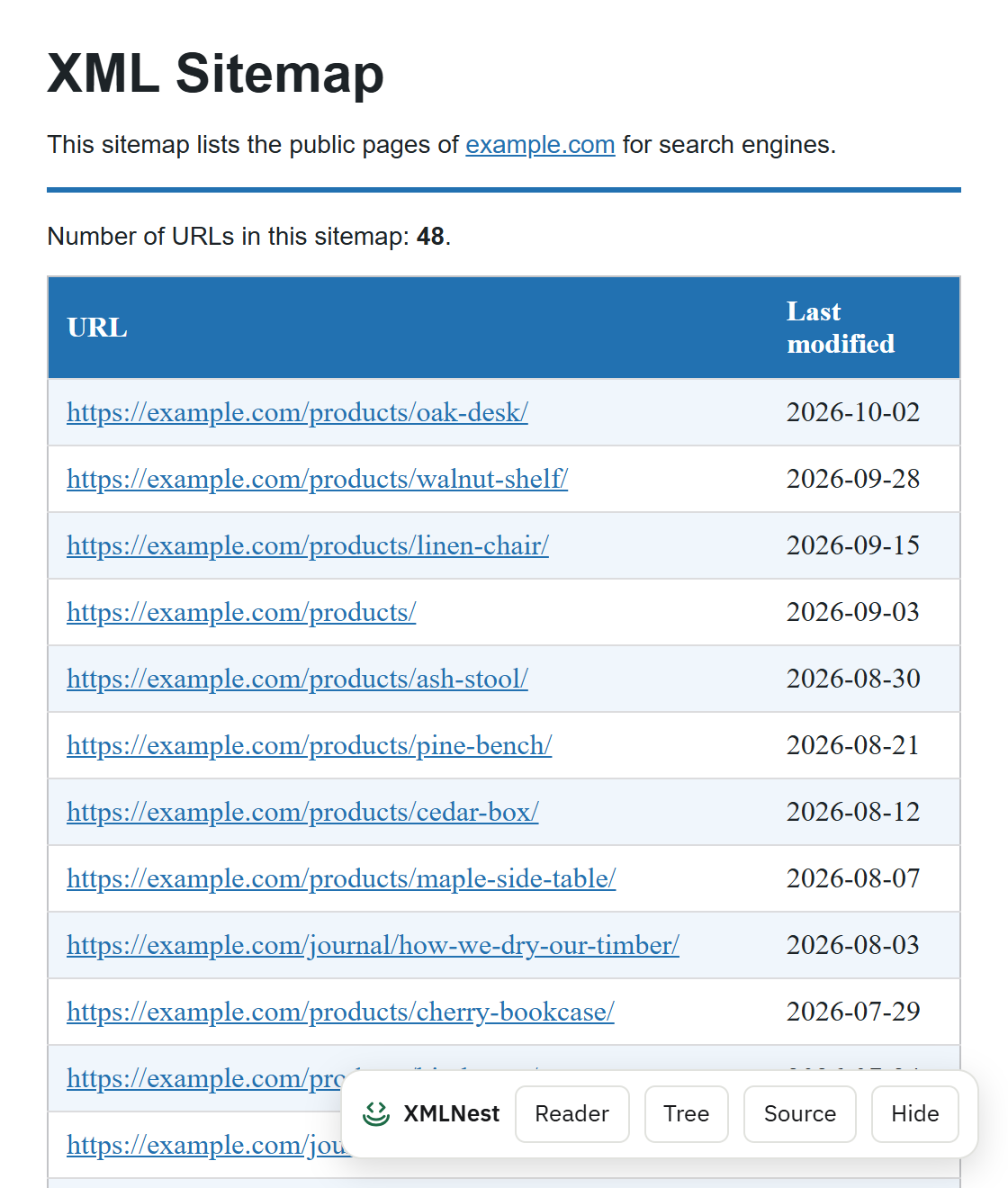
Pages that use an XSL stylesheet (XSLT 1.0), like WordPress sitemaps or device status pages, display again after Chrome removes XSLT. Web apps that call XSLTProcessor keep working too, on the sites you choose.
XMLNest shows XML files, RSS feeds, podcasts and sitemaps clearly, and shows XSLT-styled pages again after Chrome drops XSLT. Free, private, no account.

For Google Chrome™ on computers, in 55 languages. No account needed.
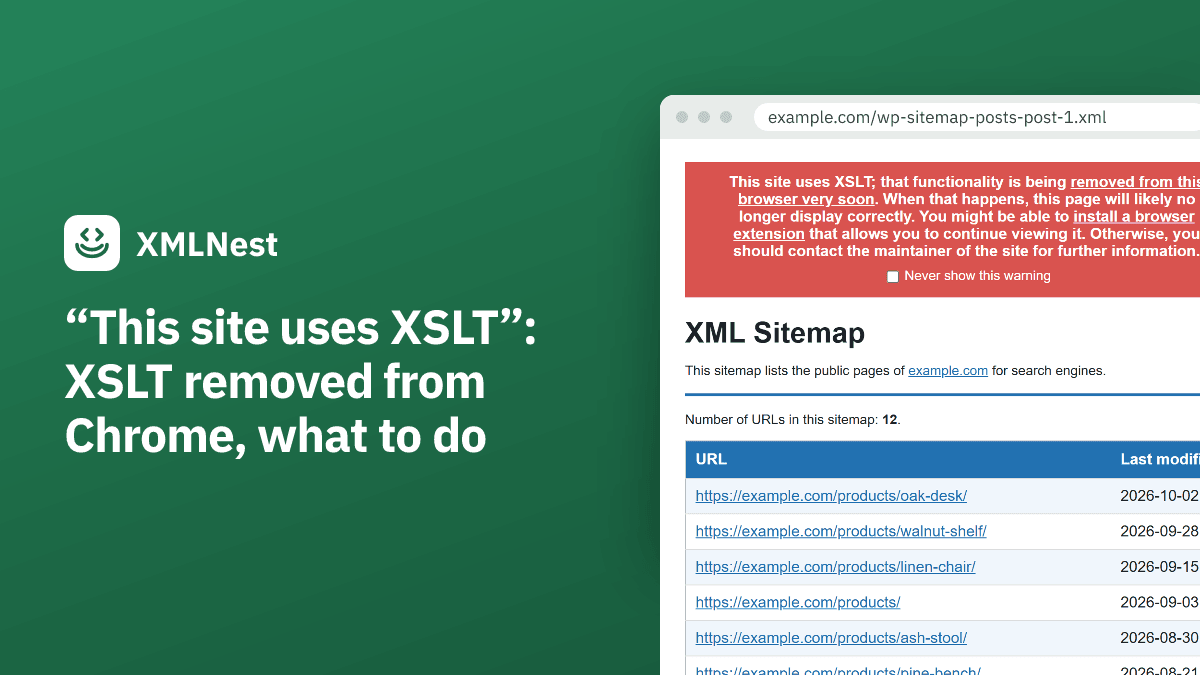
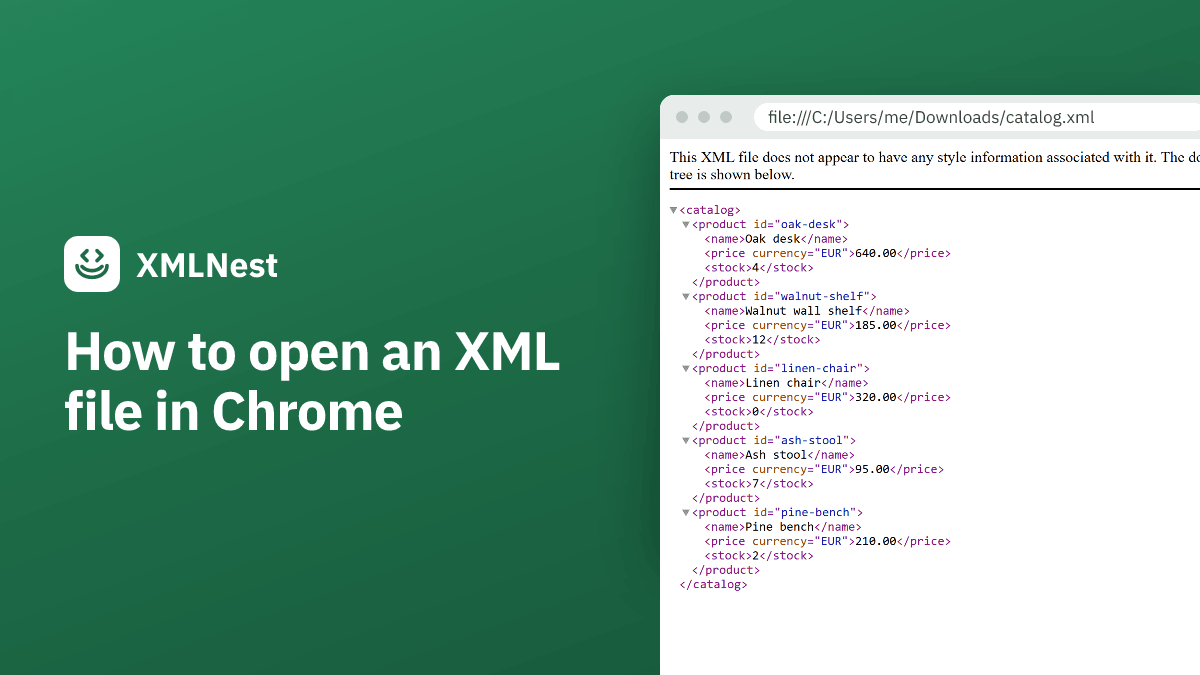
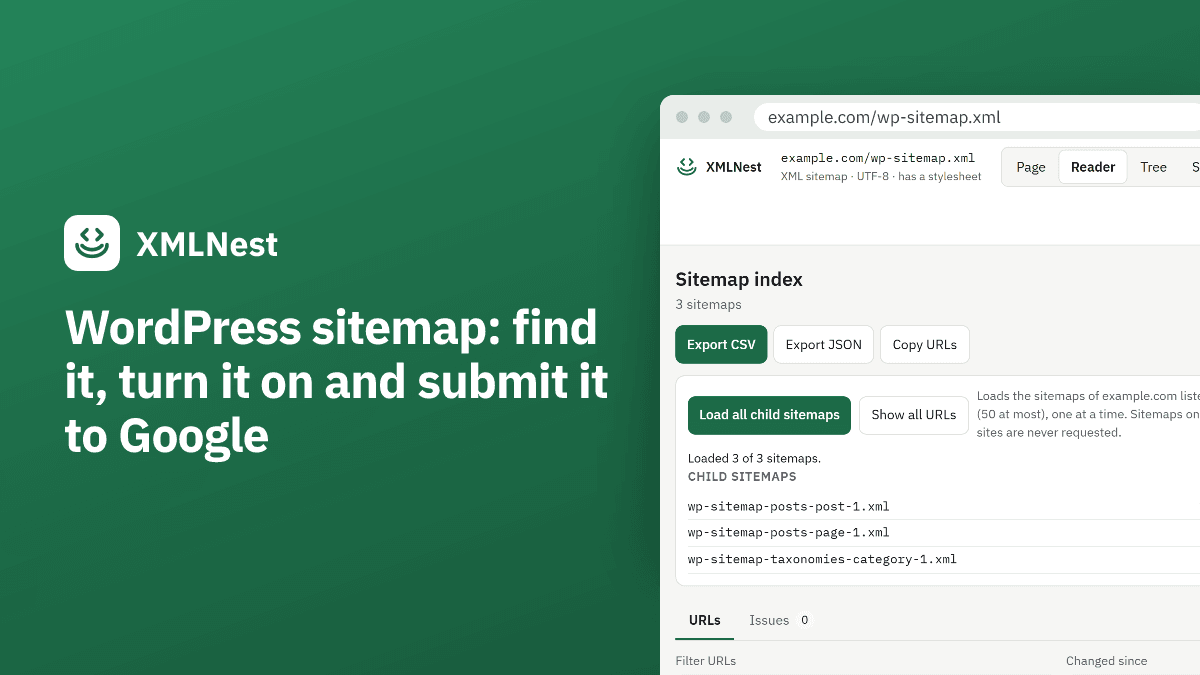
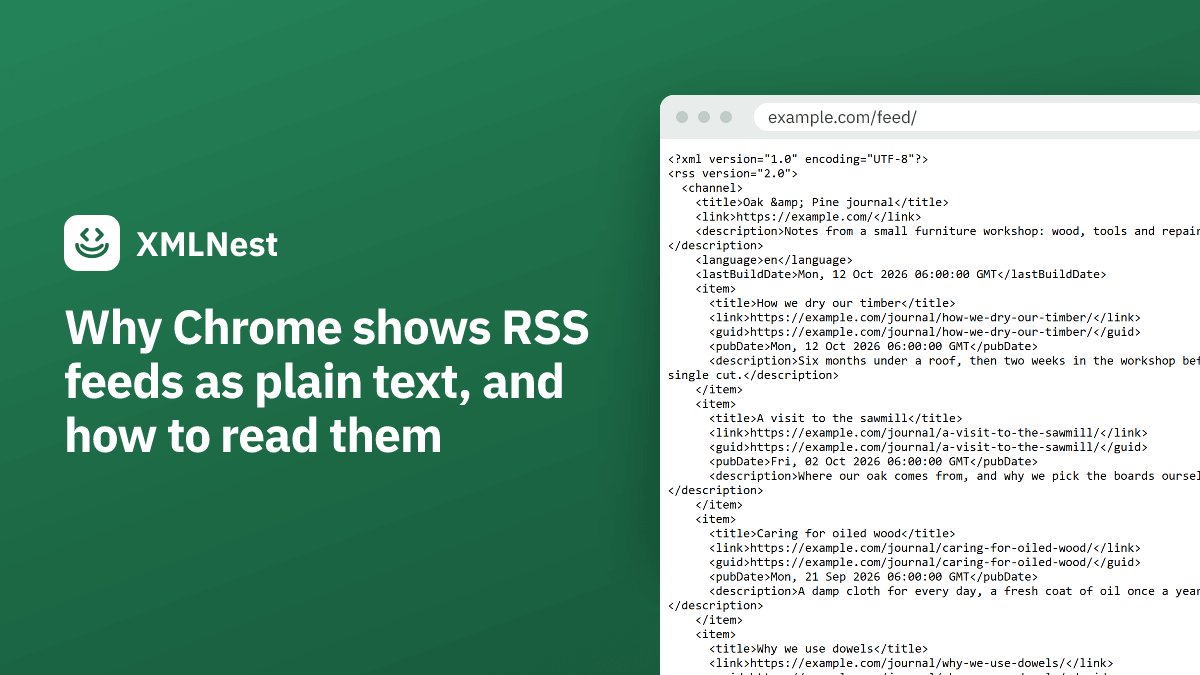
The same two files in Chrome, first without the extension, then with it.
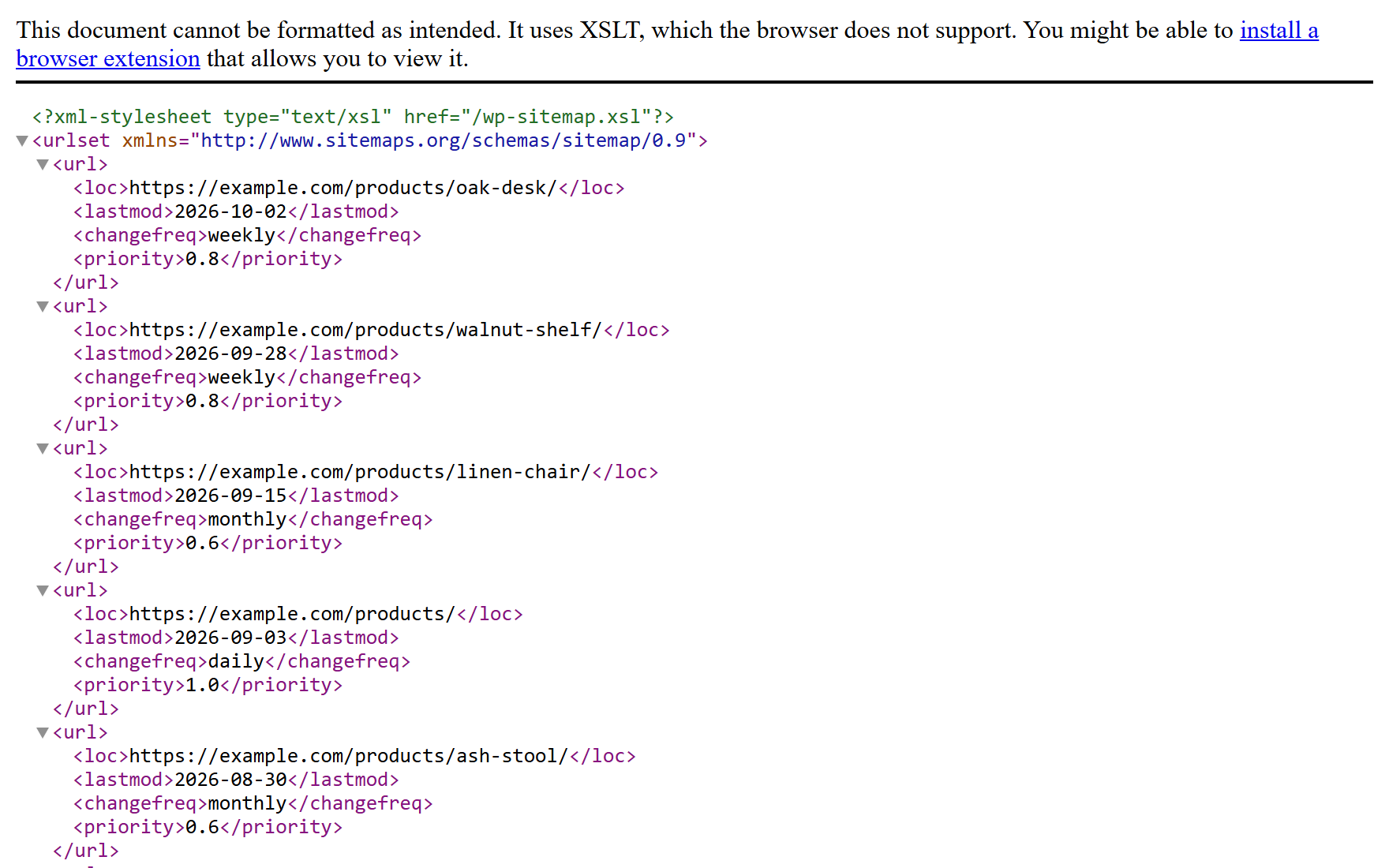
Without XMLNest
With XMLNest
Without XMLNest
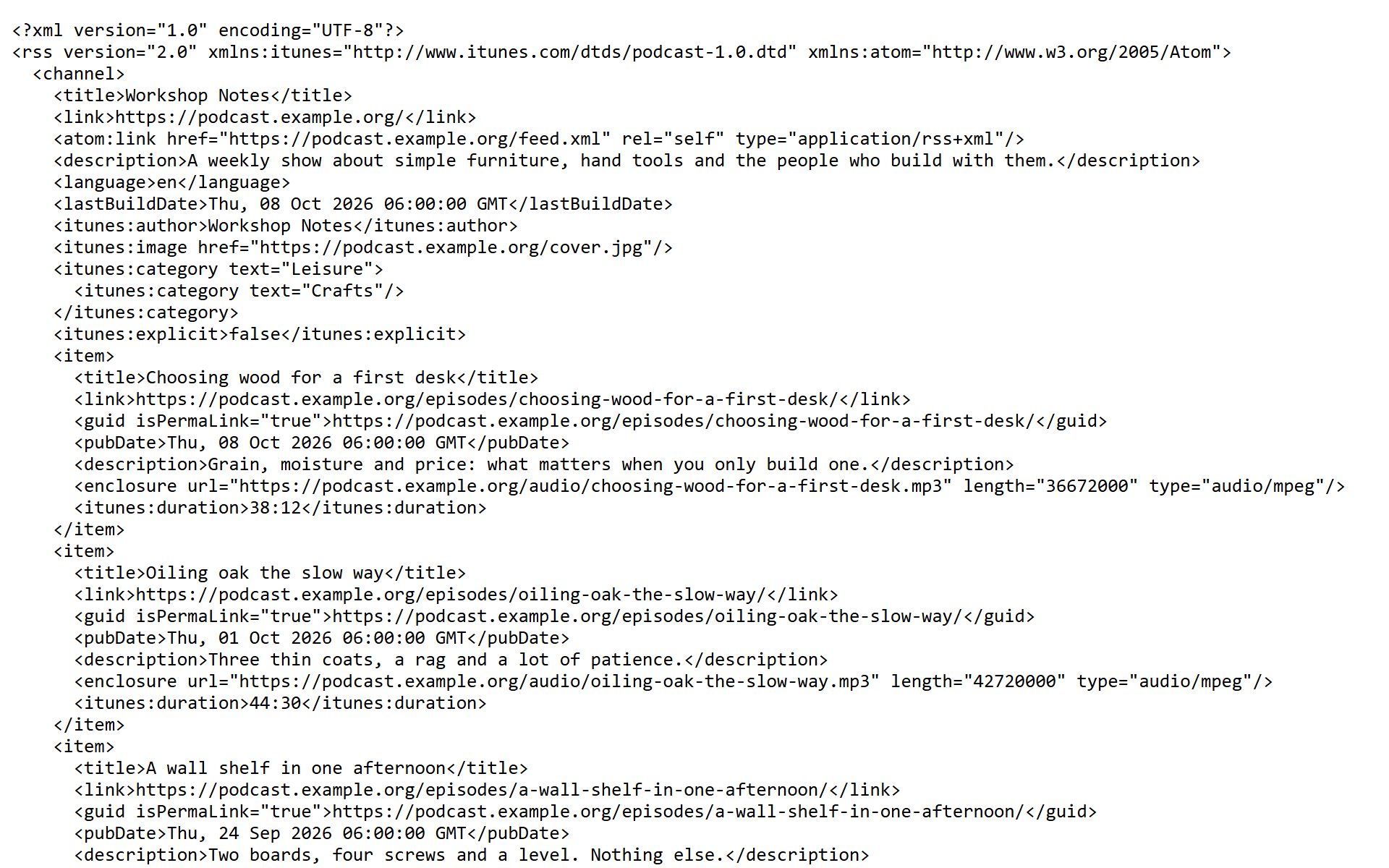
With XMLNest
All four images are screenshots of sample files in Chromium 156 with XSLT turned off, as in Chrome from 17 November 2026: first without XMLNest, then with XMLNest 1.4.
Open an XML address. XMLNest shows it as a styled page, in a reader view, as a tree or as formatted source.
Pages that use an XSL stylesheet (XSLT 1.0), like WordPress sitemaps or device status pages, display again after Chrome removes XSLT. Web apps that call XSLTProcessor keep working too, on the sites you choose.
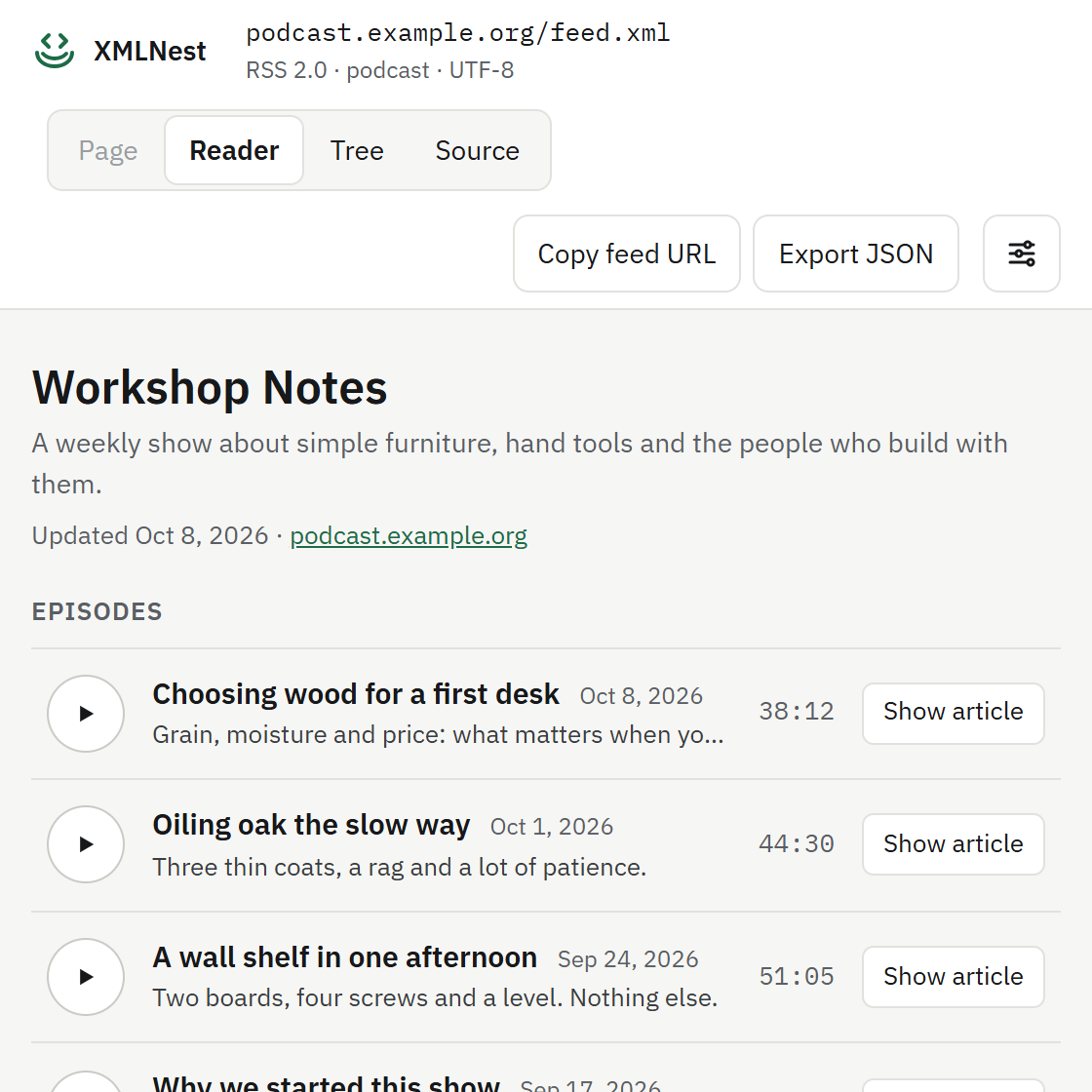
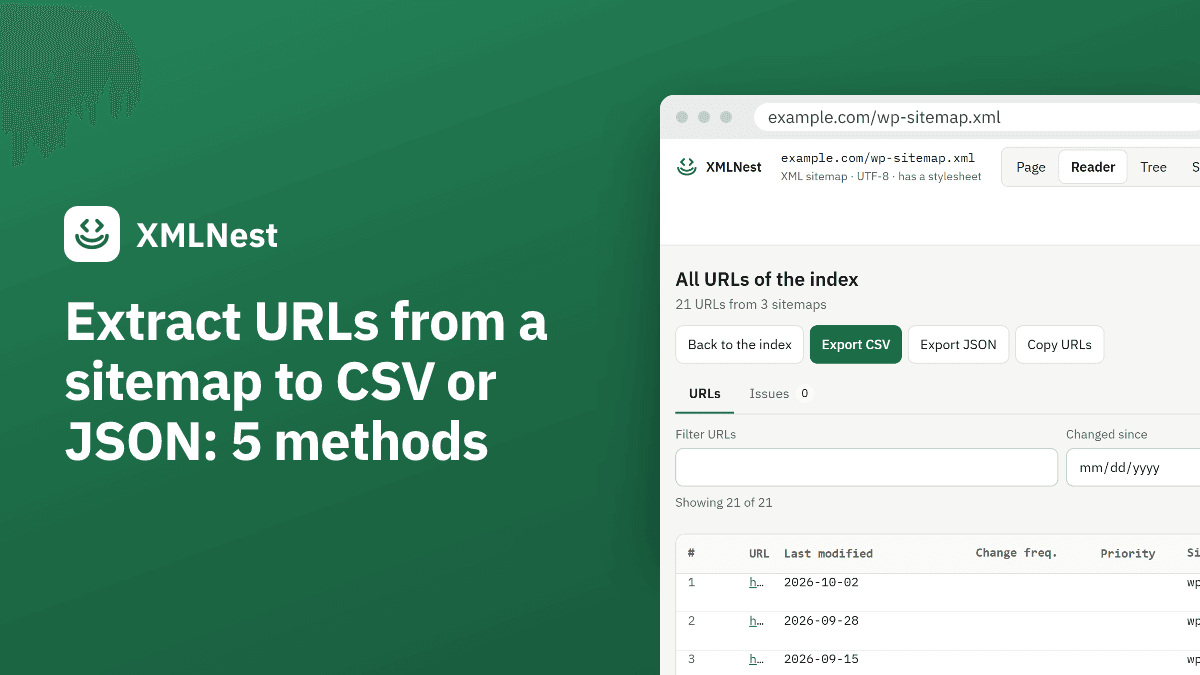
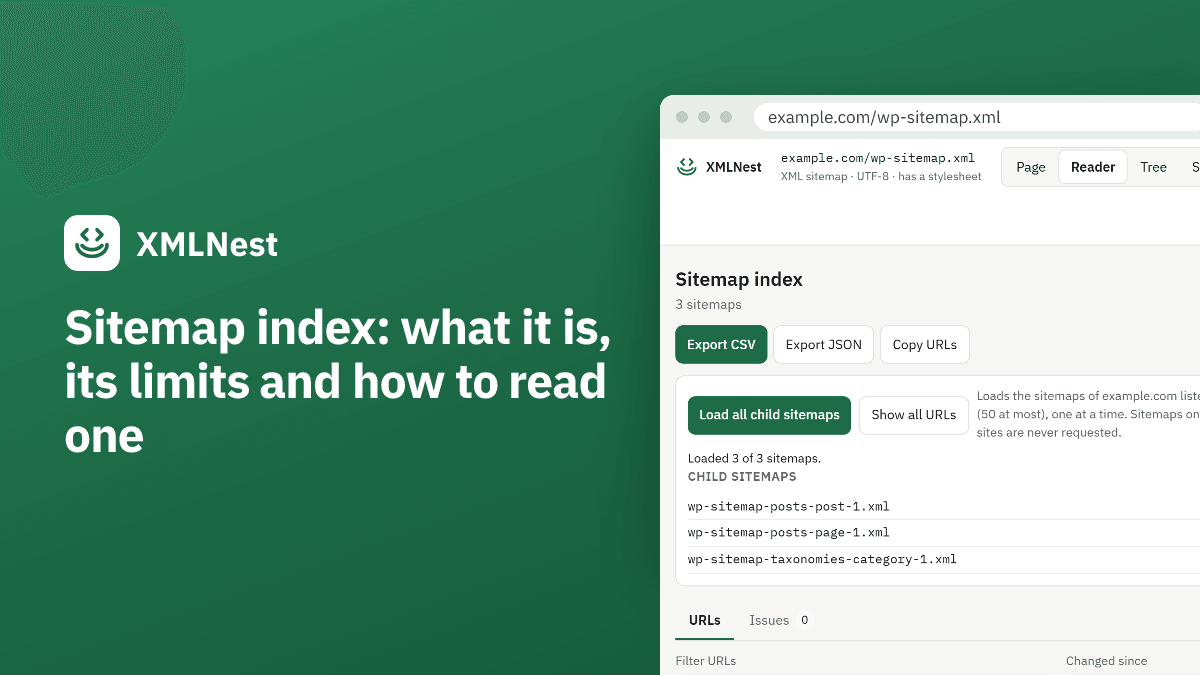
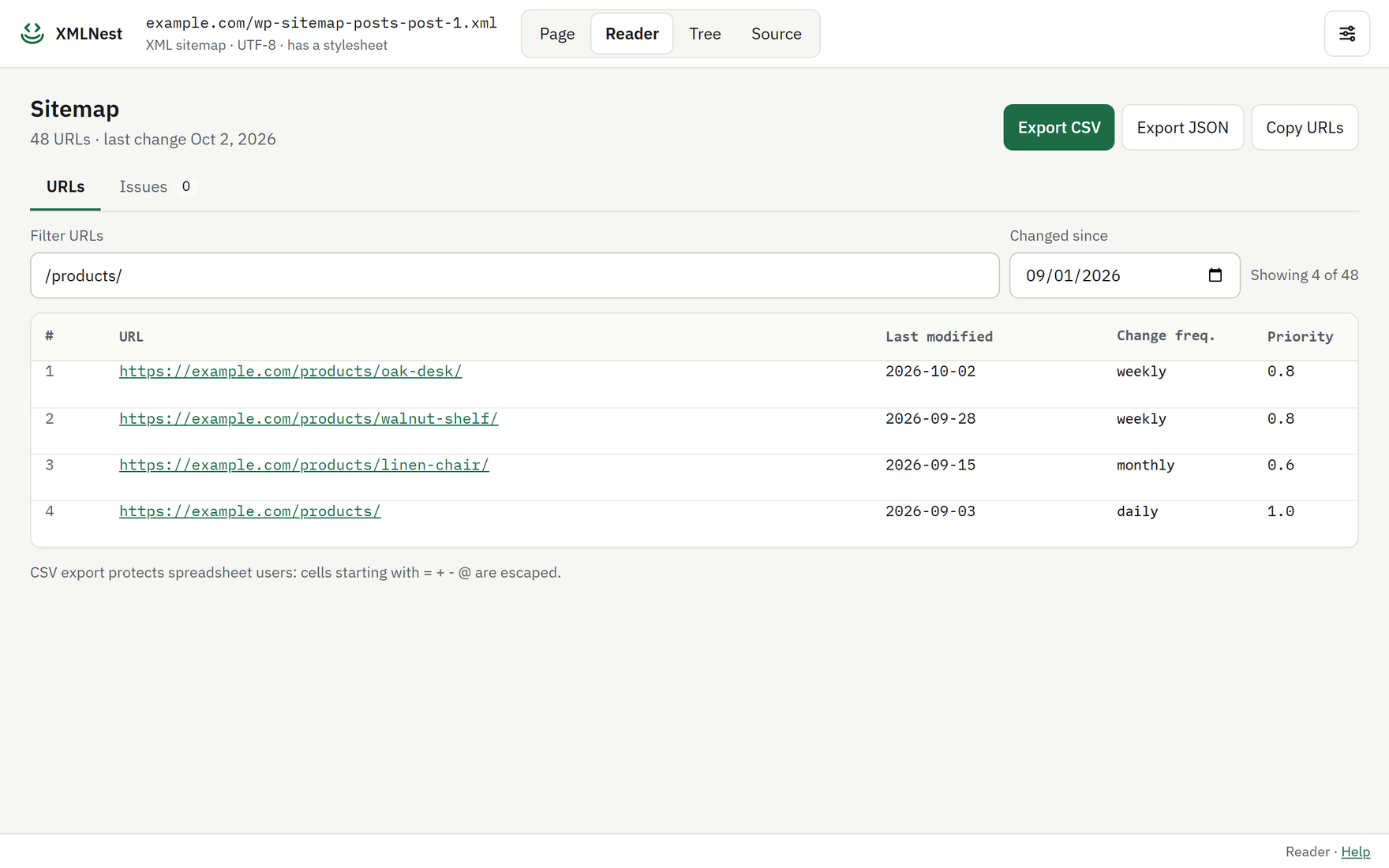
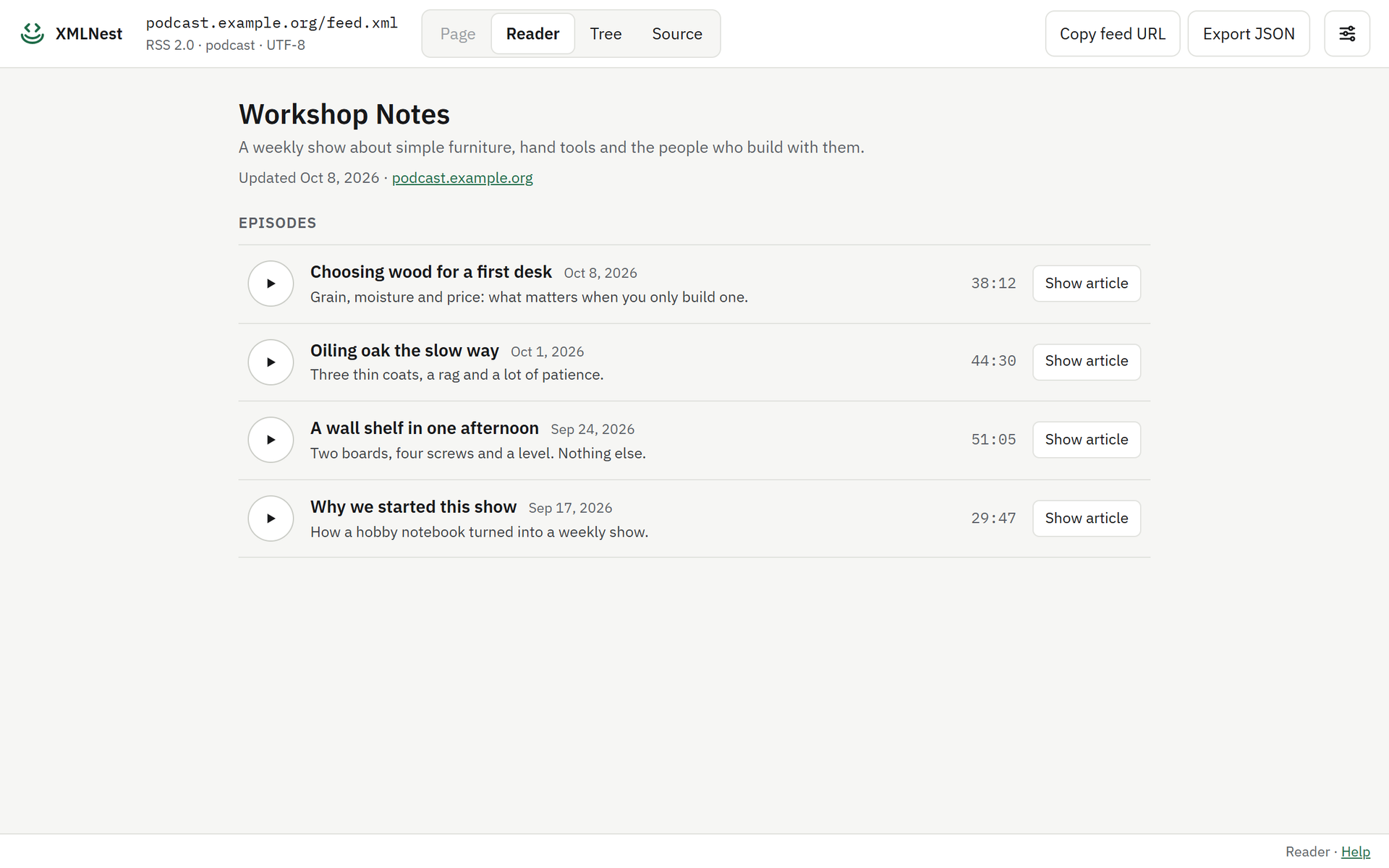
RSS and Atom feeds open in a reader view with a built-in podcast player. Sitemaps become a table you can filter, sort and export to CSV or JSON. Find sitemap errors and load child sitemaps in one click.
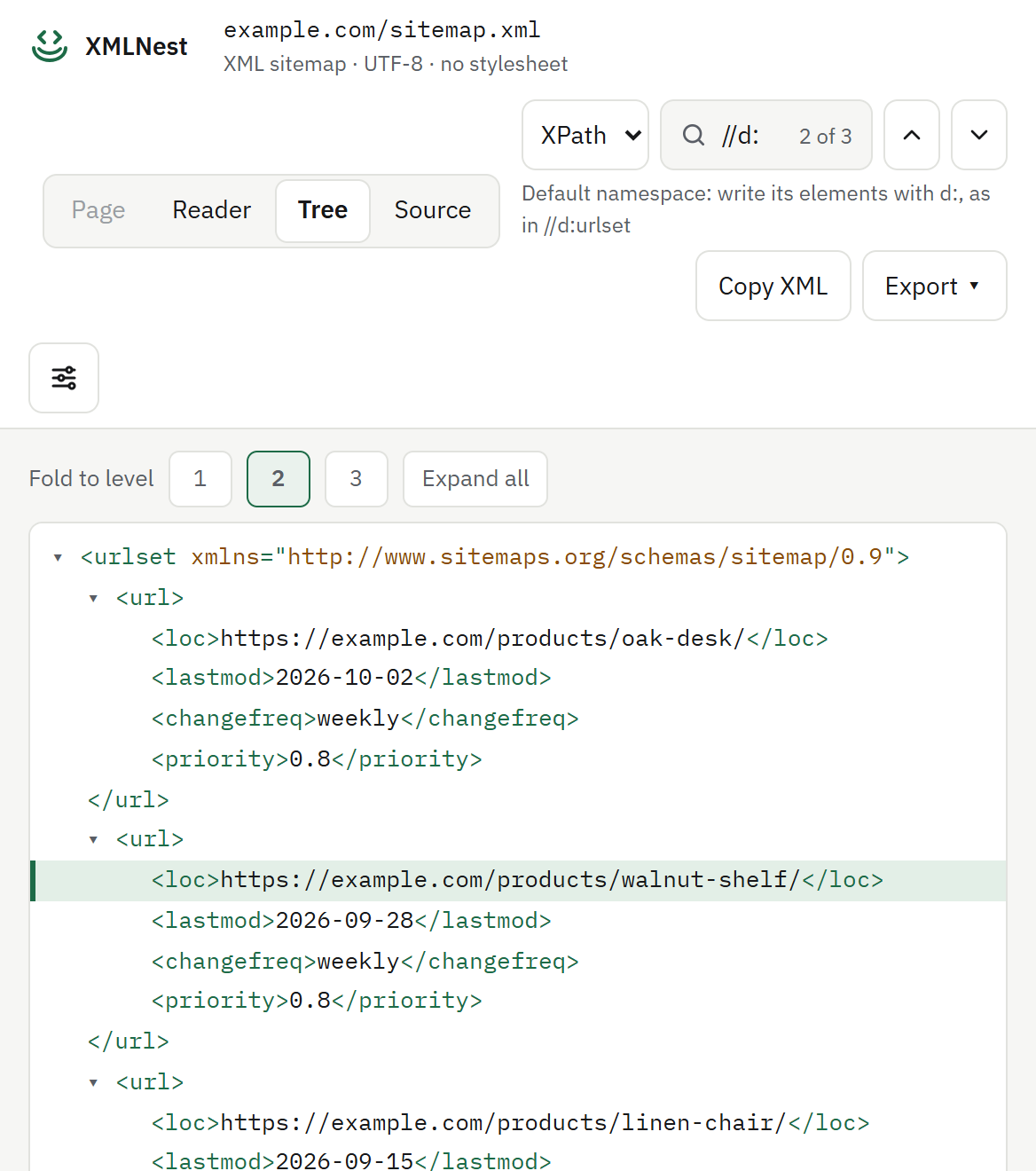
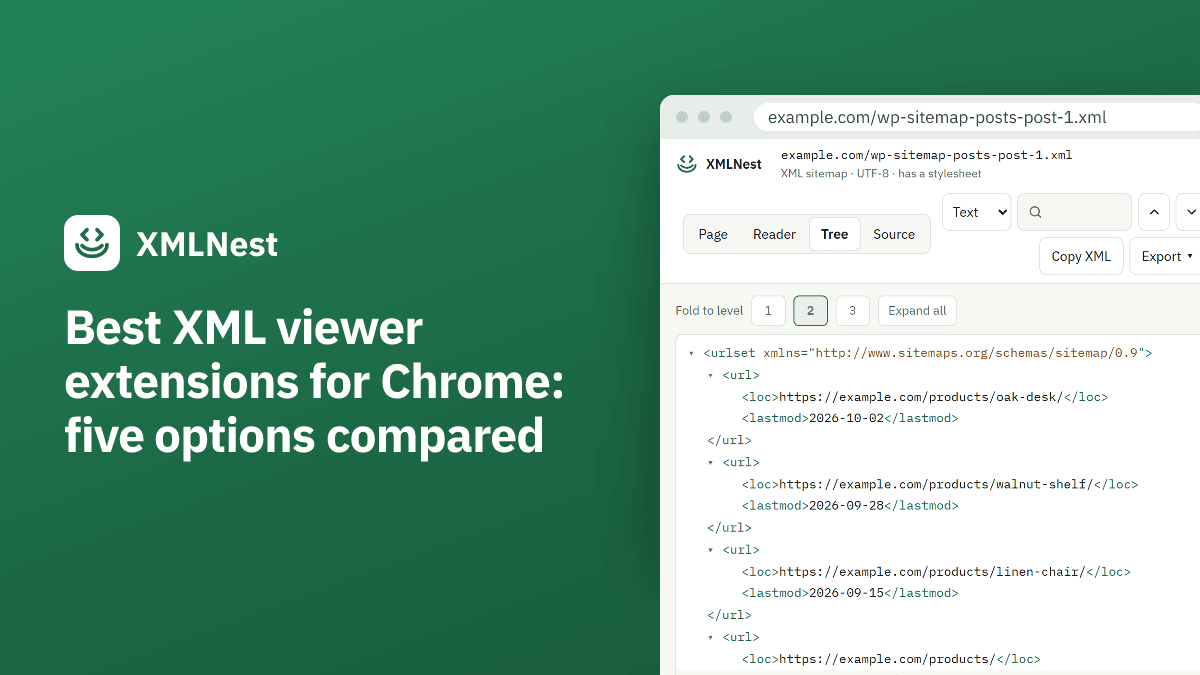
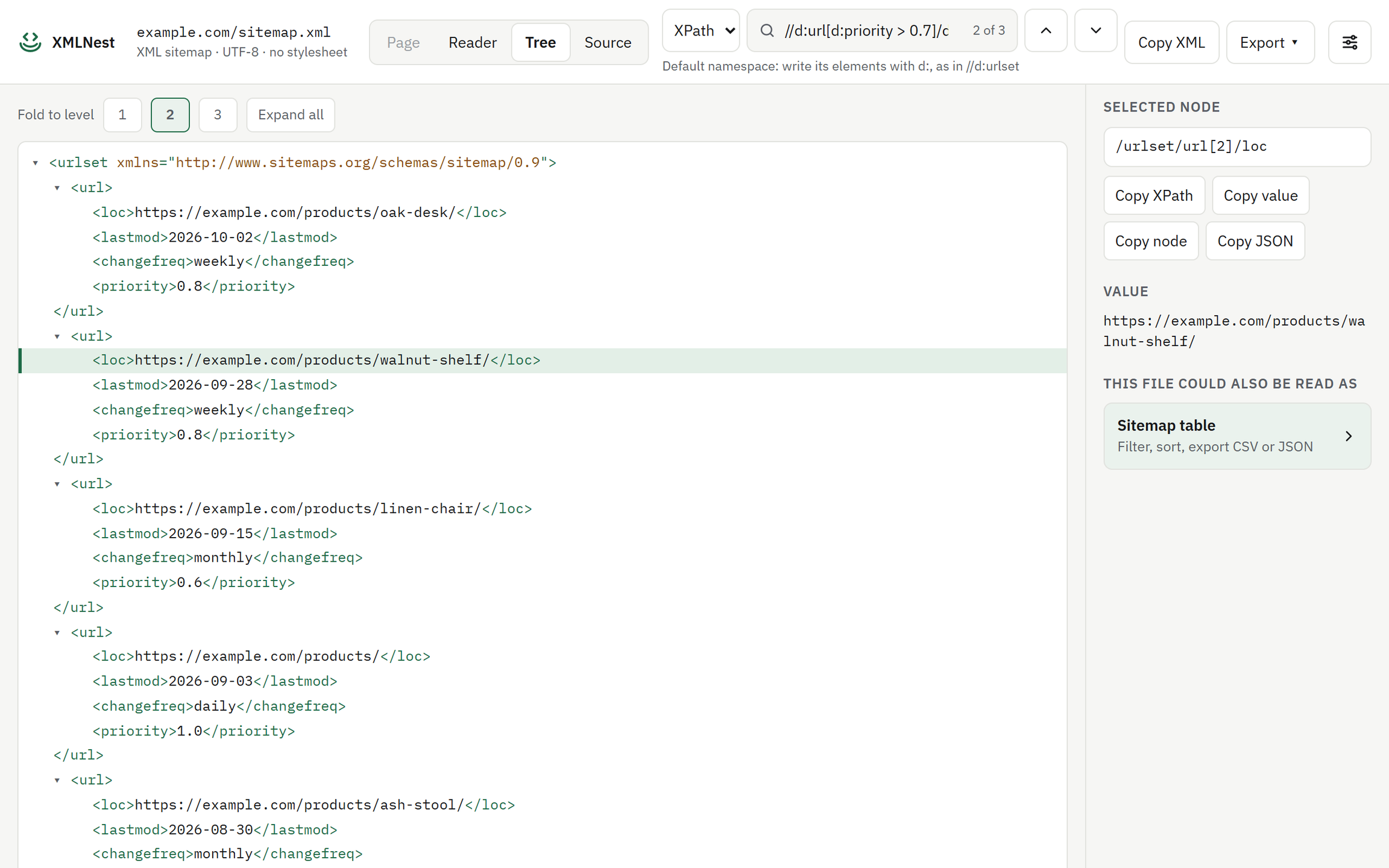
Fold and unfold, search names and values, copy a node, its value or its path. A broken file shows the line and column of the error.
Need a quick check without installing anything? These six tools by the XMLNest team run in your browser: your XML is never uploaded.
Format, beautify or minify XML. Clear error messages with the exact line.
Check that XML is well-formed. The first error comes with its line, its column and a suggested fix.
Check an XML sitemap for errors: URLs, dates, duplicates and limits, each with its line. Sort and export the URLs.
Convert XML to JSON and choose how attributes and repeated elements are written.
Test an XSLT 1.0 stylesheet on your XML and see the rendered result and its source.
Test an XPath expression on your XML and see every matching node, with its path and line.
Pick the one that fits. Each one links to a short guide.
SEO
See every URL of a sitemap with its last change date, find sitemap errors and load child sitemaps. Filter, sort, then export to CSV or JSON.
Sitemap reader view
Developer
Fold the tree, search with XPath, then copy a node, its value or its XPath. Export to JSON or CSV. A broken file shows the line and column of the error.
Tree and source views
Reader
Open a feed and read its items in a clean list. Podcast episodes play in the built-in player.
Feed reader with podcast player
Installed with no access to any site. You choose where it works. Nothing you open is collected or sent anywhere. Read the privacy policy
No account to create. XMLNest works only where you allow it.
The extension is free. Chrome shows no permission warning, because XMLNest asks for no site access at install.
XMLNest starts with no access to any site. Turn it on everywhere in one click, or site by site from the toolbar button.
Paste the address of an XML file, a sitemap or an RSS feed into Chrome's address bar. Files on your computer open too, once you allow local files.
Yes. The extension is free, with no account and no ads.
No. XMLNest is independent and not affiliated with Google. It uses the open-source xslt-polyfill library.
XMLNest needs to read an XML page to display it. You decide: on every site, or only on the sites you choose.
Yes, once you allow local files. They open in the tree, source and reader views. Like Chrome, it does not apply XSL stylesheets to local files.
Yes. XMLNest is available in 55 languages and follows the language of Chrome.