
This XML file does not appear to have any style information: what it means
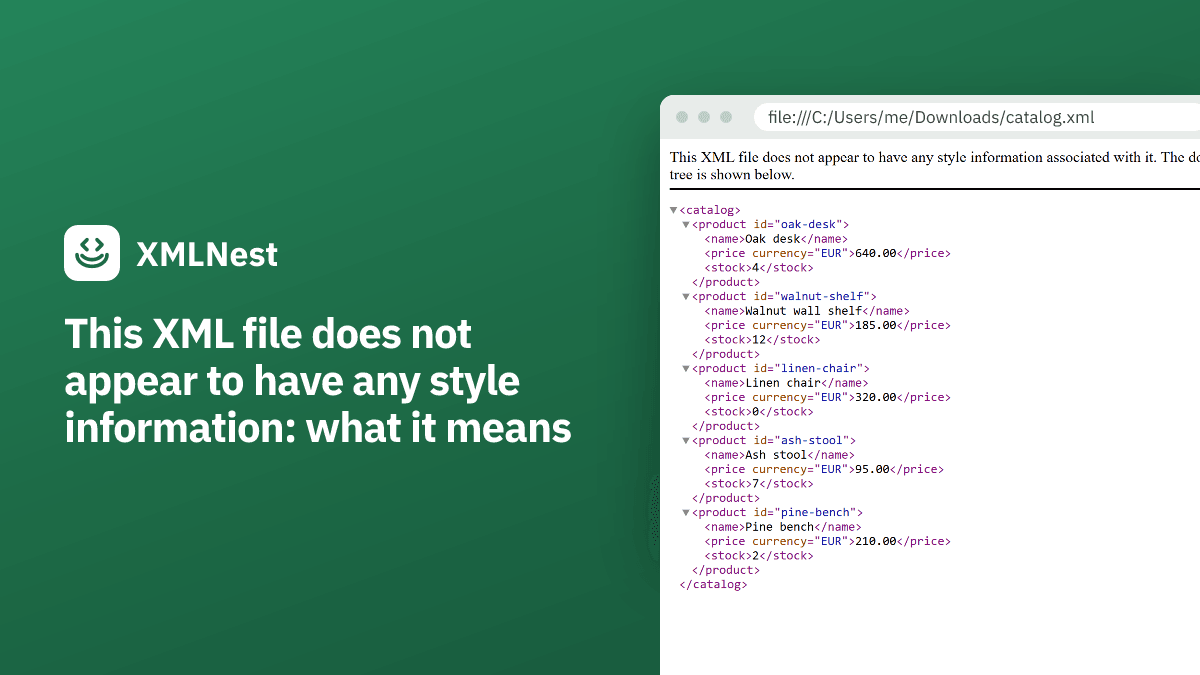
Chrome shows this English sentence above an XML file that it displays as a tree. It does not mean the file is broken. This guide explains when Chrome shows it, why it stays in English, how a stylesheet removes it, and what a different message tells you.
When you open an XML file in Chrome, the page can start with this line:
This XML file does not appear to have any style information associated with it. The document tree is shown below.
Below it, Chrome shows the content of the file as a tree whose elements you can fold and unfold. The line looks like a warning, but nothing is wrong. Chrome read the file correctly and is only telling you how it chose to display it.
What “This XML file does not appear to have any style information” means
An XML file holds data in elements named by its author, such as <item> or <price>. Nothing in those names tells a browser how they should look on screen. That is the job of a stylesheet.
When the file links to no stylesheet, Chrome has no rules for displaying the data. Instead of guessing, it shows the raw structure of the document: the elements, their content and how they nest. The sentence at the top says exactly that. There is no style information, so here is the document tree.
So the message is not an error, and you do not need to fix anything to read the file. If the XML were broken, Chrome would show a different page, described further down.
When Chrome shows the message
Chromium’s XML parser uses this tree view only when all of these conditions are met:
- The XML file is displayed as a page of its own in the tab, not inside another page.
- It has an XML content type, such as
text/xmlorapplication/xml. - Chrome parsed it with no error.
- It links to no CSS stylesheet and to no XSLT stylesheet.
- It contains no elements in the namespaces that Chrome renders itself, XHTML and SVG.
If one of these is not true, you see something else: a styled page, a page of errors or plain text.
Why the message is always in English
The sentence is written in English in Chromium’s XML viewer script, DocumentXMLTreeViewer.js, and it has no translation. Chrome therefore shows it in English whatever language you use the browser in.
Firefox shows the same English sentence for an XML file without a stylesheet. Unlike Chrome, Firefox translates it into the language of the browser.
Add a CSS stylesheet to the XML file
If you publish the XML file and want readers to see a formatted page instead of the tree, link a CSS stylesheet. Add this line before the root element:
<?xml-stylesheet type="text/css" href="style.css"?>
Chrome then styles the document with that CSS, and the message disappears. Our article on how to style an RSS feed with CSS walks through a complete example.
XML files that use XSLT, since Chrome 158
Some XML files link to an XSLT stylesheet instead of CSS. Since Chrome 158, released on 17 November 2026, Chrome no longer runs XSLT for normal users. The exceptions are the XSLTEnabled enterprise policy and the origin trial, which last until Chrome 176, on 17 August 2027.
For such a file, Chrome shows the same tree, but with a different English line on top:
This document cannot be formatted as intended. It uses XSLT, which the browser does not support. You might be able to install a browser extension that allows you to view it.
What changed and what visitors and site owners can do is covered in our guide on XSLT removed from Chrome.
No tree and no message: a file sent as text/plain
When a server sends the XML file with the content type text/plain, the HTML standard’s rules for loading a document treat it as plain text. You see the raw tags as unformatted text, with no tree and no message. If this happens with a feed, see why an RSS feed shows as plain text.
A different message: “This page contains the following errors”
When the XML is not well formed, for example when a tag is never closed, Chrome does not show the style information message. The page starts with “This page contains the following errors:” instead. In that case the file does need a fix. Our XML validator gives the line and column of the first error.
Read the XML tree more comfortably
Chrome’s tree is fine for a quick look. For long files, XMLNest, our free Chrome extension, shows the XML as a tree you can fold, searches element names and values, and has a source view with line numbers. When a file is broken, it gives the line and column of the error.
If you would rather not install anything, paste the XML into our online XML formatter, which indents it in your browser. For other ways to open the file, see how to open an XML file in Chrome.
Questions
Is “This XML file does not appear to have any style information” an error?
No. Chrome read the file without error. The file does not link to a stylesheet, so Chrome shows the structure of the data as a tree instead of a formatted page.
Why is the message in English when Chrome uses another language?
The sentence is written in English in Chromium's XML viewer script and has no translation. Chrome shows it in English whatever the language of the browser.
How do I make the message disappear?
Link a CSS stylesheet with an xml-stylesheet line of type text/css before the root element. Chrome then styles the document and no longer shows the message.
Why do I see raw text with no tree and no message?
The server sends the file as text/plain. A document of that type is displayed as plain text, so Chrome shows the tags as they are, without the tree.
Sources
- Chromium source: xml_document_parser.cc (when the XML tree viewer is used) (checked on 25 November 2026)
- Chromium source: DocumentXMLTreeViewer.js (text of the message) (checked on 25 November 2026)
- HTML Standard: loading a document (checked on 25 November 2026)
- Firefox source: XMLPrettyPrint.ftl, string xml-nostylesheet (en-US) (checked on 25 November 2026)
- Mozilla l10n: Firefox translations, file dom/dom/XMLPrettyPrint.ftl of each language (checked on 25 November 2026)
- Chrome for Developers: Removing XSLT for a more secure browser (checked on 25 November 2026)