
Open an XML file: Windows, Mac, phone, Excel and Chrome
An XML file is a text file that stores data between tags. A browser or a text editor that is already on your computer can read it, so you do not need to install anything. This guide covers Windows, Mac, Chrome, phones and Excel, and what to do when you only see tags or a blank page.
An XML file (extension .xml) is plain text: data wrapped in tags such as <name> or <price>. Which app opens it on a double-click depends on your computer’s settings. Choose the app by what you want to do:
- Read it: Chrome or another web browser
- Edit it: Notepad, TextEdit or Visual Studio Code
- Work with it as a table: Excel
- Read it on a phone: the XML formatter of this site, in the phone’s browser
XML is data, not a document with a layout. Unlike a Word file, it shows its tags when you open it, and that is expected.
Pick an app with Open with on Windows
To use a different app once, right-click the file, choose Open with, then pick Google Chrome, Notepad or another app. If the app is not listed, Microsoft’s help says to choose Open with > Choose another app to see the other apps on your computer.
To open every XML file with the same app, change the default app:
- Open Settings and select Apps > Default apps.
- In the search bar, type
.xml. - Select the .xml entry, then choose the app you want.
Use Open With and Get Info on a Mac
Control-click the file, choose Open With, then choose an app. You can also select the file in the Finder and use File > Open With.
To change the app for all XML files:
- Select an XML file in the Finder and choose File > Get Info.
- In the Open with section, click the pop-up menu and choose an app.
- Click Change All.
Read XML files in Chrome
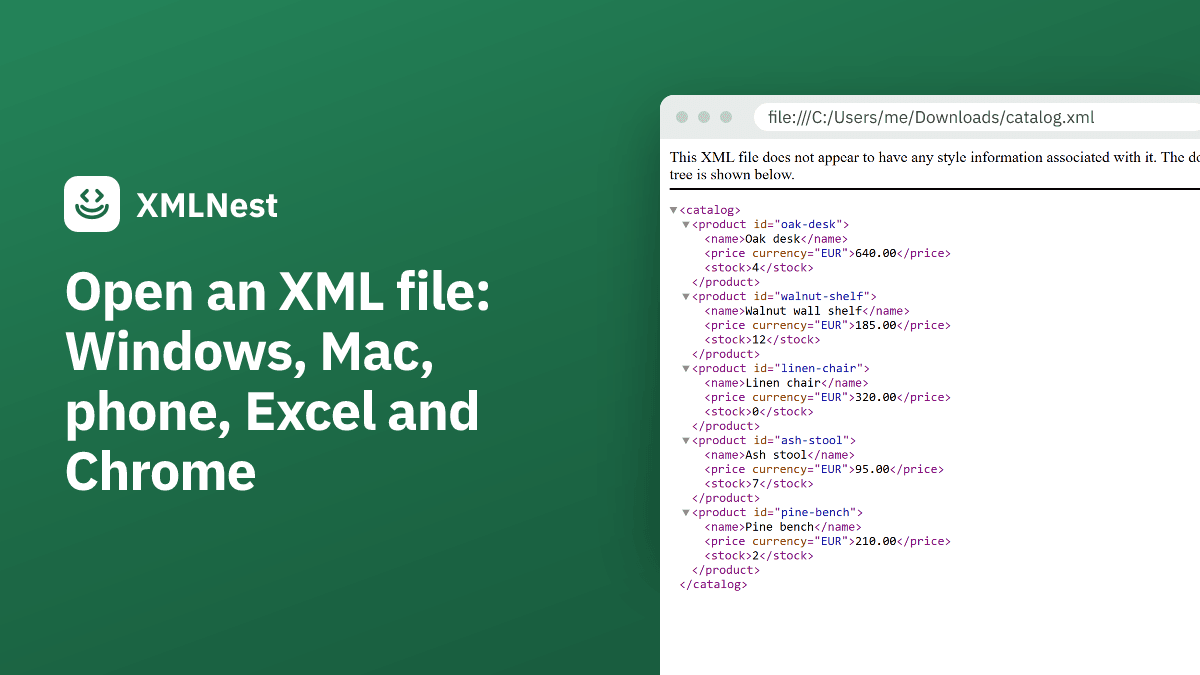
To open an XML file stored on your computer, press Ctrl+O in a Chrome window (⌘+O on a Mac) and select it. You can also type its path in the address bar, starting with file:///, for example file:///C:/Users/me/Downloads/catalog.xml. For an XML file online, paste its address into the address bar.
Chrome then shows this line at the top of the page:
This XML file does not appear to have any style information associated with it. The document tree is shown below.
It is not an error: the file links to no stylesheet, so Chrome uses its own tree view, with each element indented under its parent. The message stayed in English when XMLNest tested Chrome set to Japanese.
Chrome displays XML but cannot edit it. Chrome 158 removed XSLT on 17 November 2026, but Chrome’s announcement says that XML itself stays: files without a stylesheet still open as a tree. For online files and Chrome’s error messages, see the Chrome guide for XML files.
If you read long XML files often, the free XMLNest extension, available on the Chrome Web Store, adds folding, search and export to that tree.
Read XML on an iPhone or Android phone
Phones often have no app that opens XML. Open the XML formatter in the phone’s browser, tap Open file… and choose the file, or paste its content. The XML appears indented and colored.
The file is read on the phone and never uploaded. If the XML came by email, save the attachment to the phone first.
Turn XML into a table in Excel
Excel can turn the repeated records of an XML file into rows and columns.
- Click File > Open, select the XML file and open it.
- In the Open XML dialog box, choose As an XML table.
Excel creates an XML table in a new workbook. According to Microsoft, when the file refers to no schema, Excel infers one from the data. When it refers to an XSLT stylesheet, Excel shows a different dialog box.
Edit XML in Notepad, TextEdit or a code editor
To change the file, open it in Notepad on Windows, TextEdit on a Mac, or a code editor such as Visual Studio Code. You see the raw text with its tags, and you can edit and save it.
Keep the encoding that the first line declares, such as encoding="UTF-8". Saving in another encoding can break accented letters. After saving, reload the file in Chrome to check that it still shows as a tree.
When you see tags, raw text, an error or a blank page
- Tags and text everywhere: this is how XML looks. To make it easier to read, indent it with the XML formatter.
- Raw text instead of a tree: the server most likely sent the file as text/plain. In XMLNest’s test, the same XML was a tree as application/xml and raw text as text/plain. Save the file as .xml and open it from your computer.
- An error in English: “This page contains the following errors:”, followed by a line and a column, means the XML is not well-formed. The real mistake can be a little earlier. Paste the XML into the XML validator to see the line and column of the first error.
- A blank page: the XML usually links to an XSL stylesheet. In XMLNest’s test, Chrome did not load the XSL file for an XML file on the computer and showed nothing. Pages that depend on XSLT are explained in what to do now that XSLT is removed from Chrome.
Questions
What program do I need for XML files?
No extra program. A browser such as Chrome or Edge shows the content. To change it, use Notepad, TextEdit or a code editor such as Visual Studio Code. To work with the data as a table, use Excel.
Why does Chrome show an English message above the XML?
The file does not link to a stylesheet, so Chrome says it is showing its own tree view instead. It is not an error. In XMLNest's test, the message stayed in English with Chrome set to Japanese.
Can I read an XML file on my phone?
Yes. Open the XMLNest XML formatter in the phone's browser, tap Open file… and pick the file, or paste its content. The XML is shown indented, and the file is not sent anywhere.
Can Excel turn an XML file into a table?
Yes. In Excel, choose File > Open, select the file, then choose As an XML table. Microsoft says that when the file refers to no schema, Excel infers one from the data.
Why does my XML file show a blank page?
The file usually links to an XSL stylesheet. In XMLNest's test, Chrome showed a blank page for an XML file on the computer that linked to an XSL file, because Chrome does not load that stylesheet from the computer.
Sources
- Change default apps in Windows - Microsoft Support (checked on 25 November 2026)
- Common file name extensions in Windows (opening an unknown file) - Microsoft Support (checked on 25 November 2026)
- Choose an app to open a file on Mac - Apple Support (checked on 25 November 2026)
- Import XML data - Microsoft Support (checked on 25 November 2026)
- Chrome keyboard shortcuts - Google Chrome Help (checked on 25 November 2026)
- Chrome for Developers: Removing XSLT for a more secure browser (checked on 25 November 2026)
- Tested by XMLNest : Tested by XMLNest on 30 October 2026 in Chromium 156.0.8078.4 started with the Japanese display language (--lang=ja, locale ja-JP). An XML file opened from the computer and an XML file sent as application/xml showed “This XML file does not appear to have any style information associated with it. The document tree is shown below.” and then the tree. The same XML sent as text/plain showed as raw text, tags included. An XML file with a mismatched closing tag showed “This page contains the following errors: error on line 1 at column 29: Opening and ending tag mismatch”. An XML file on the computer that linked to an XSL stylesheet gave a blank page. Every message stayed in English (checked on 30 October 2026)